

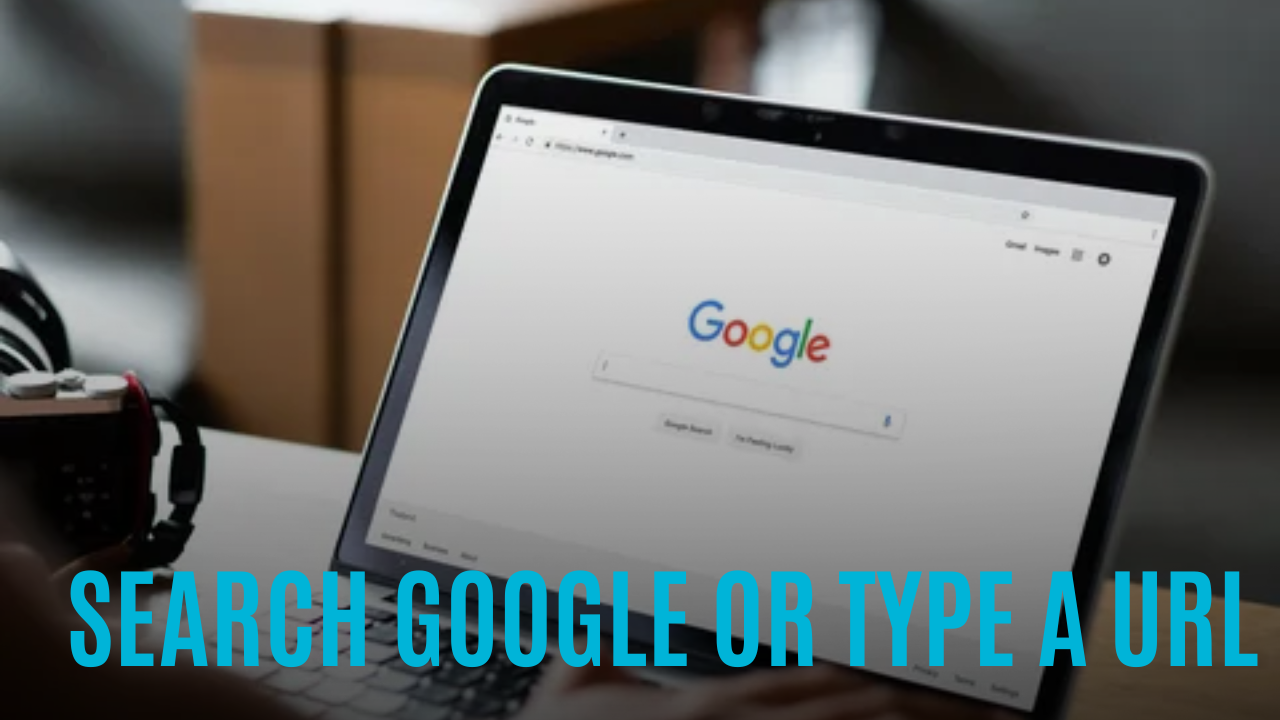
When you open a web browser, you'll typically see a search bar with a prompt like Search Google or type a URL (or variations like Search or type web address or Search or enter URL). This dual-function box is one of the most used yet misunderstood features in web browsing. But what's the difference between searching and typing a URL? And when should you use each option?
Understanding the Browser Address Bar
The omnibox (the combined search and address bar in browsers like Chrome, Edge, and Firefox) serves two primary purposes:
1. Searching the web – If you type a question or keyword (eg, best pizza near me), the browser sends your query to a search engine (usually Google).
2. Direct website access – If you type a full URL (eg, facebook.com), the browser takes you directly to that website.
Variations of the Prompt
Different browsers and versions may display slightly different wordings, such as:
- Search Google or type URL
- Search or type web address
- Search or enter URL
- Search or type a URL
All of these mean the same thing—you can either search the web or go straight to a site.
When Should You Search vs. Type a URL?
Use Google Search When You
- Don't know the exact website – Searching online banking for Chase is faster than guessing the URL.
- Need answers, not a specific site – Queries like how to fix a leaky faucet are better for search.
- Want to compare options – Searching best laptops 2024 gives multiple sources instead of one website.
Use "Type a URL" When You
-
Know the exact website – If you want Facebook, typing facebook.com is quicker than searching.
-
Want to avoid search results clutter – Going straight to youtube.com skips ads and unrelated links.
-
Need a secure connection – Some phishing scams appear in search results; typing the real URL (like paypal.com) ensures you visit the legitimate site.
Pro Tips for Faster Browsing
1. Use Autocomplete – Browsers remember URLs—start typing ama and it may suggest amazon.com.
2. Bookmark Frequently Used Sites – Save time by bookmarking sites like Gmail or Twitter.
3. Use Keywords for Searches – If you type weather NYC, the browser may show instant weather results.
4. Beware of Typos – Mistyping goggle.com instead of google.com could lead to scam sites.
Why Do Browsers Combine Search and URL Bars?
Before 2008, browsers had separate search and address bars. Google Chrome merged them into the omnibox to:
- Simplify the interface (one bar instead of two)
- Speed up browsing (fewer clicks needed)
- Encourage Google searches (which benefits Google's ad business)
Troubleshooting: What If the Bar Doesn't Work?
If typing a URL redirects you to a search instead:
-
Check for typos – wikipedia.org works; wikipeda.org may trigger a search.
-
Add "https://" – Some older sites need the full address.
-
Reset browser settings – If hijacked by malware, the bar may force unwanted searches.
Final Verdict: Search or Type a URL?
Both options are useful—search when you need information, type a URL when you know where you're going. Mastering this small but crucial browser feature can save time and make your internet experience smoother.

 English
 Arabic
 French
 Spanish
 Portuguese
 Deutsch
 Turkish
 Dutch
 Russian
 Romaian
 Portuguese (Brazil)
 Greek